It’s 6:47 PM. The winter concert starts in thirteen minutes. You’ve got forty-three students in holiday sweaters lined up backstage, a parent volunteer who just asked which button starts the music, and your phone is buzzing with a text that says “the projector’s showing a blue screen.”
Sound familiar?
If you’re a music teacher or performing arts director, you know that school concerts come with a unique kind of stress. It’s not just about preparing the students—it’s about coordinating the technical elements that bring a performance together. Backing tracks need to start at exactly the right moment. Visuals need to cue on time. And somehow, you’re expected to conduct, troubleshoot, and reassure nervous performers all at once.
Here’s the good news: with a little preparation and the right tools, you can create polished, professional-feeling school concerts, choir performances, and musicals without the backstage chaos.
Running Backing Tracks at School Concerts: The Challenge
In a professional production, there’s a dedicated sound engineer, a lighting technician, and a stage manager cueing everything. In a school setting? That’s often one person—you—plus a helpful parent who’s never touched a sound board.
This creates predictable problems:
The Cue Catastrophe. Someone clicks the wrong track. The backing music for “Winter Wonderland” starts during the fifth-grade recorder ensemble’s performance of “Jingle Bells.” Now you’re scrambling to stop it while maintaining your encouraging smile toward thirty confused students.
The Visual Void. You wanted to display lyrics on screen during the sing-along, but switching between your music player and PowerPoint means awkward gaps while you alt-tab between windows.
The Volunteer Variable. Your tech volunteer is enthusiastic but untrained. You’ve given them a sticky-note covered laptop with instructions like “click the green play button on track 3 when I point at you.” You spend half the concert watching them instead of your students.
Backing Track Software That Simplifies School Concerts
The simplest fix is consolidating everything into one place. Instead of juggling a music player, a slideshow app, and a folder full of files, use software that keeps your audio and visuals together.
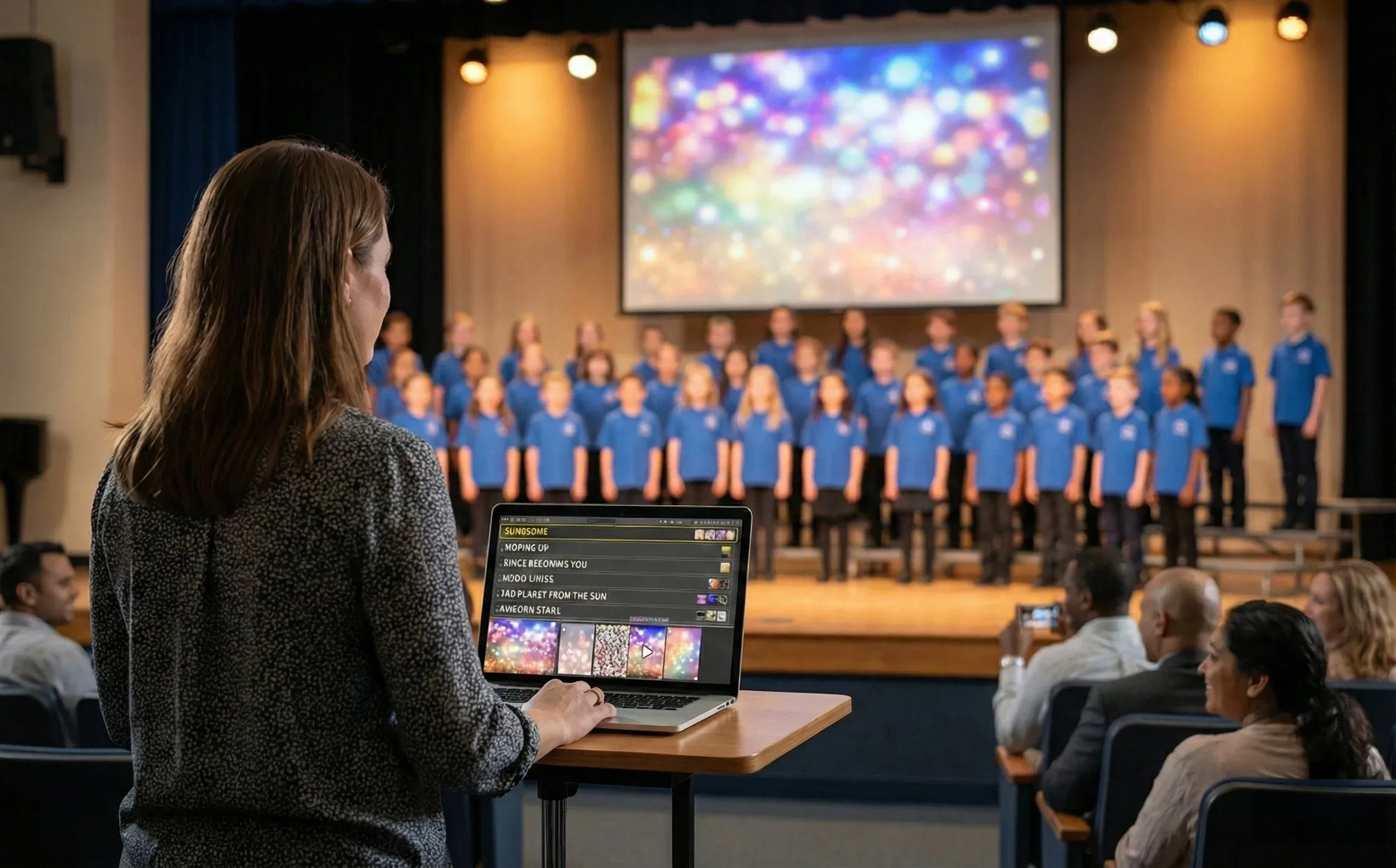
Visibox was built for exactly this. You create a setlist where each song contains its backing track and any visuals you want displayed—a background image, lyrics, or even video. Your volunteer’s job becomes dead simple: click to start the next song. That’s it.
A few things that make this work well for schools:
No auto-advance surprises. Unlike most media players, Visibox waits for you to trigger each song. The next track won’t accidentally start while students are still shuffling into position. You control the pace.
Audio and visuals stay paired. Want a starry background during “Twinkle Twinkle” and lyrics on screen for the sing-along? Each song remembers its own visual. No switching apps, no hunting for files.
Simple hardware. Connect your laptop’s audio output to the PA system (or just the room’s speakers for smaller venues), run an HDMI cable to the projector, and you’re set. No audio interfaces or special equipment required.
Add Live Video: Put Your Soloists on the Big Screen
Here’s an idea that takes a concert from “nice” to “wow”: set up a camera near the microphone where soloists perform, and display their face on the projector while they sing.
Parents in the back row suddenly have a front-row view. The student feels like a star. And Visibox can switch between your camera feed and other visuals as part of the setlist—so you’re not fumbling with video sources mid-concert.
This setup works especially well for:
- Talent shows with individual acts
- Musical theater solos
- Student emcees or narrators
- Award presentations
School Concert Tech Setup: What You Need
What you need:
- A laptop (Windows or Mac)
- An HDMI cable to a projector or large display
- A connection to the PA system (headphone jack to the sound board works fine)
- Optional: a USB webcam or camera for live video
Before the concert:
- Build your setlist in order, with each song’s backing track and visual
- Test audio through the PA and visuals on the projector
- Run through at least one transition with your volunteer
- Establish a simple hand signal for “go”
The Payoff
There’s a moment during every school concert—usually around the third song—when a music teacher either relaxes or starts counting down the minutes until it’s over.
When the technical side runs smoothly, you get to actually watch your students perform. You notice how far they’ve come. You see the proud faces in the audience. You feel the satisfaction of months of preparation coming together.
That’s the real goal. Not flashy technology for its own sake, but reliable, invisible technology that lets everyone focus on what matters: the music.
Try Visibox Free for Your Next School Concert
Download Visibox free and build a test concert with your setlist. The free version handles small performances, so you can see if this approach works for your choir concert, band performance, or school musical before committing any budget.