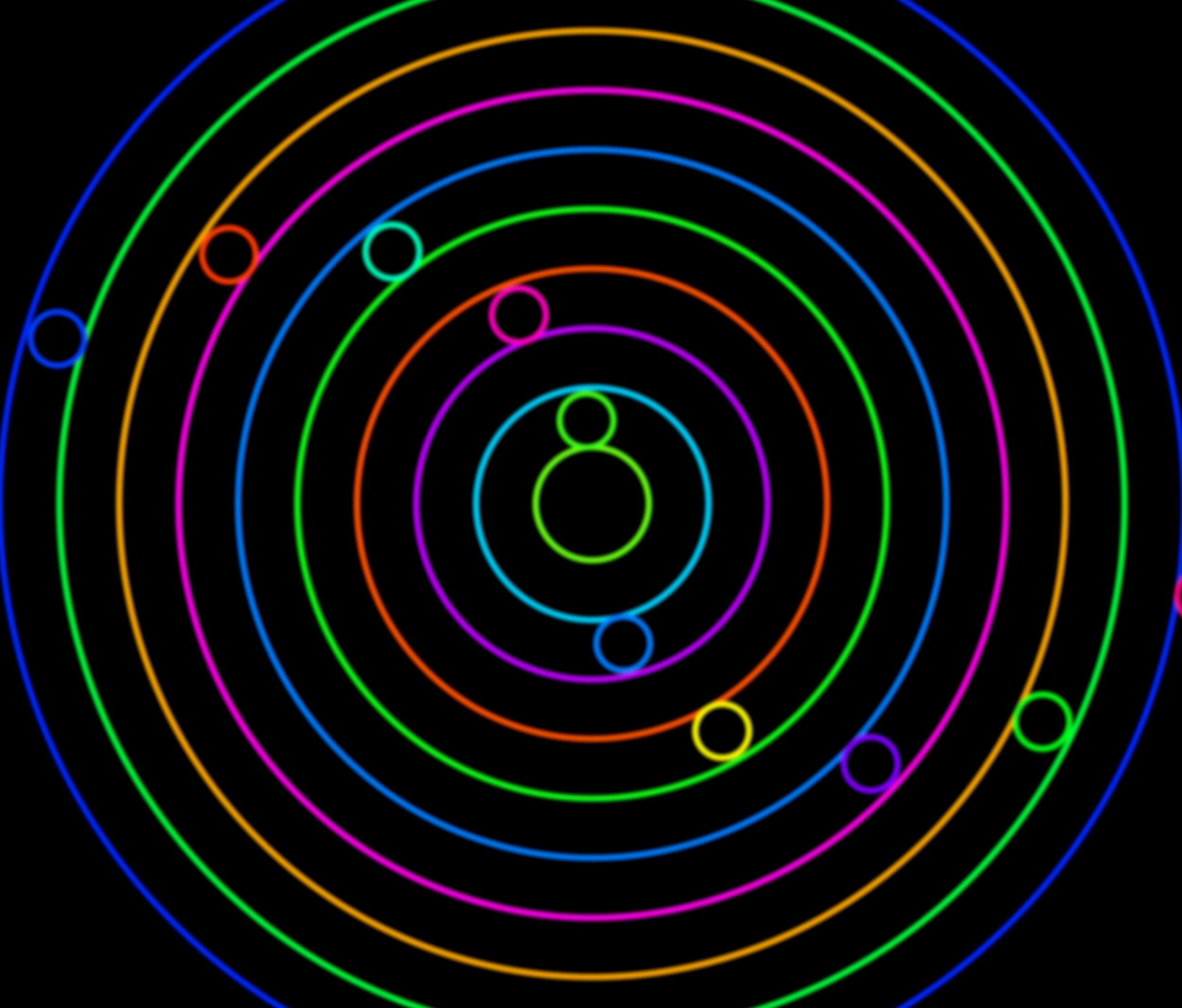
Claude builds a brand-new Visibox effect from scratch, live, in a couple of minutes.
Visibox 5 ships with a built-in MCP server, which is a fancy way of saying your desktop AI assistant can reach into the app and do real work. In the video above, I connect Claude to Visibox and ask it to build an effect I don't know how to write myself: a James Bond style gun-barrel iris that masks the screen down to a circle and jumps around in time with the track. A few minutes later it's sitting in my project, ready to drop on a clip.
No plugin to install. No effect language to learn. You describe what you want, the assistant does the fiddly part, and you stay in the director's chair.
Effects in Visibox are just CSS
Here's the trick that makes this work: a Visibox effect is plain CSS, the same language that styles every web page. That sounds technical, but it's the opposite of a closed, proprietary effect format. CSS is one of the most documented things on the internet, so any AI assistant that's good at code is already good at writing Visibox effects.
The assistant doesn't guess in a vacuum, either. Once it's connected, it reads the effects already in your project, learns the conventions Visibox expects, and writes new ones that match. You get something that actually loads and runs, not a snippet you have to debug.
What you'll see in the video
The walkthrough is end to end, with nothing cut out:
- Connect once. Register the Visibox MCP server with a single click from the Settings menu.
- Confirm the link. A quick check that the assistant is really talking to Visibox, not just describing what it would do.
- Describe the effect. I ask for the gun-barrel iris in plain language.
- Watch it build. The assistant reads your existing effects, writes the CSS, and adds the new effect to the project.
- Drop it on a clip. Once it's built, putting it on a clip is a couple of clicks.
You stay in charge
The point isn't "AI does it for you." The point is that the boring, fiddly work, the part that used to mean reading docs or hiring someone, now takes a sentence. You still decide what the show looks like, what fires when, and what makes the cut. The assistant is the stagehand, not the director.
The same approach reaches well beyond effects. A connected assistant can edit projects, rearrange clips, and tweak songs for you. It can also build audio-reactive visualizers, which is a harder art and an even better fit for AI. We cover that one in a separate walkthrough: Create AI Music Visualizers with Claude, ChatGPT, or Gemini.
Which assistants work
Visibox works with any desktop assistant that speaks the MCP protocol. As of this recording that includes:
- Claude Desktop and Claude Code (Anthropic)
- Cursor
- Visual Studio Code
- OpenAI Codex
- Gemini CLI
More are being added all the time. Full setup steps live in the Visibox manual.
Try it yourself
Visibox is free to start, and every Pro feature is unlocked for two weeks so you can wire up your assistant and build a few effects of your own. Download Visibox and tell your AI what you want to see.