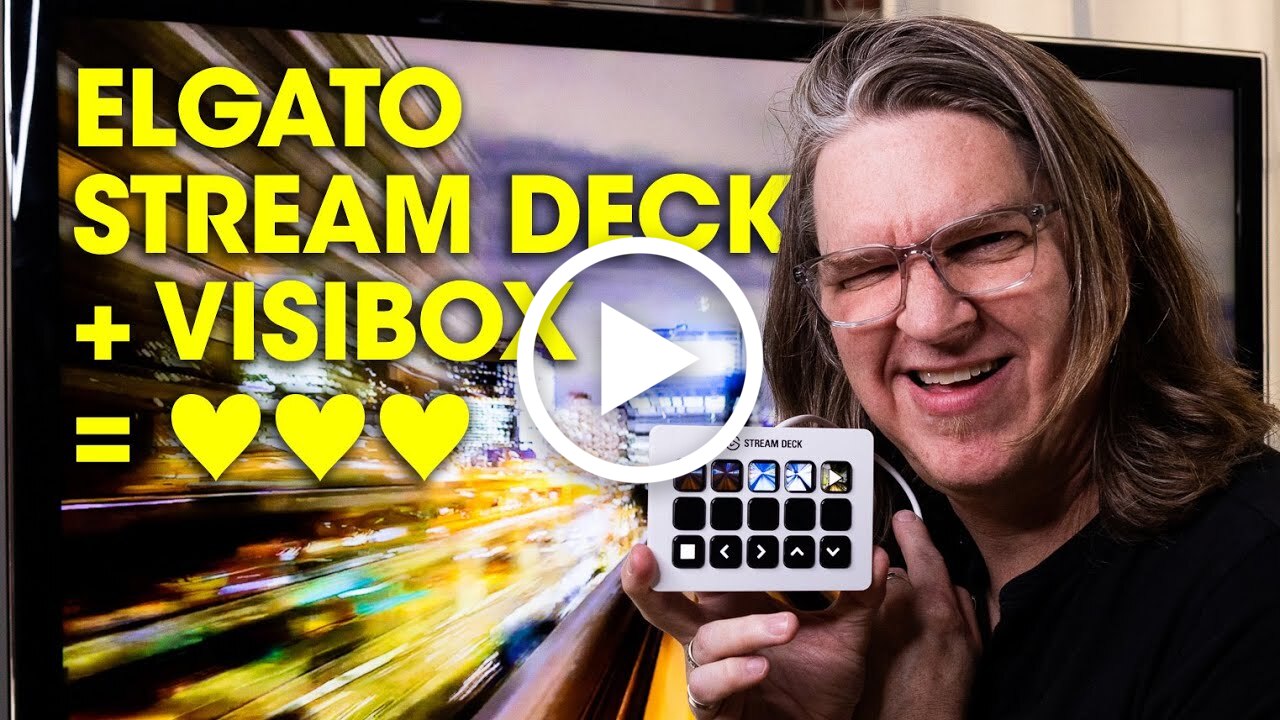
Visibox 5 turns your Elgato Stream Deck into a real control surface for live visuals. Your clips, songs, and playback controls sit right on the keys, next to the buttons you already use for your other apps.
Every key can show a live preview of what it triggers — videos, images, audio-reactive visualizers, even a rolling preview of your camera. You always know what you’re about to fire before you hit it. No more guessing mid-set.
In this walkthrough I set it up from scratch on a Stream Deck XL and go through every button type, from triggering clips to system controls.
What you’ll learn:
- Which Stream Decks work — the original 15-key, the 6-key Mini, the XL, and the Stream Deck + with knobs
- Installing the Visibox plugin and profiles from Visibox settings, and granting the connection permission
- Triggering clips with live thumbnail previews right on the keys
- The Trigger Clip button — clip number and the song-offset trick for laying a whole song across a row of keys
- Thumbnail and icon options for your buttons
- Selecting songs by song number, program ID, or song ID
- Playback controls: play, pause, stop, resume, and toggles
- Navigation: next and previous clip and song
- Output level — which pairs perfectly with the knobs on the Stream Deck +
- System controls: a panic button to reset your windows mid-set, and a fullscreen toggle
The song-offset trick is the one to watch for. Lay a whole song across a row of keys, then use the offset to put the previous song on the row above and the next song on the row below — so your entire set is laid out spatially and you can jump anywhere with a single press.
Prefer Visibox’s built-in Stream Deck mode? That’s still there too. Just leave the plugin unchecked in the Devices settings.
Questions about Stream Deck setup, or anything else in Visibox? There’s a contact form on our site and inside the app — we’re happy to help.