The computer running your visuals is always in the wrong place. It’s side stage behind the keyboard rig, in a rack by the drummer, or up in the booth, and the moment you need it is the moment you can’t reach it. The singer wants to skip a song. The engineer wants the video audio down two notches. Someone has to walk over.
Visibox Remote moves the controls to wherever you’re standing. It’s a free app for iPhone, iPad and Android, and it runs Visibox on your computer, Mac or Windows, over the same network.
Your show, as pads
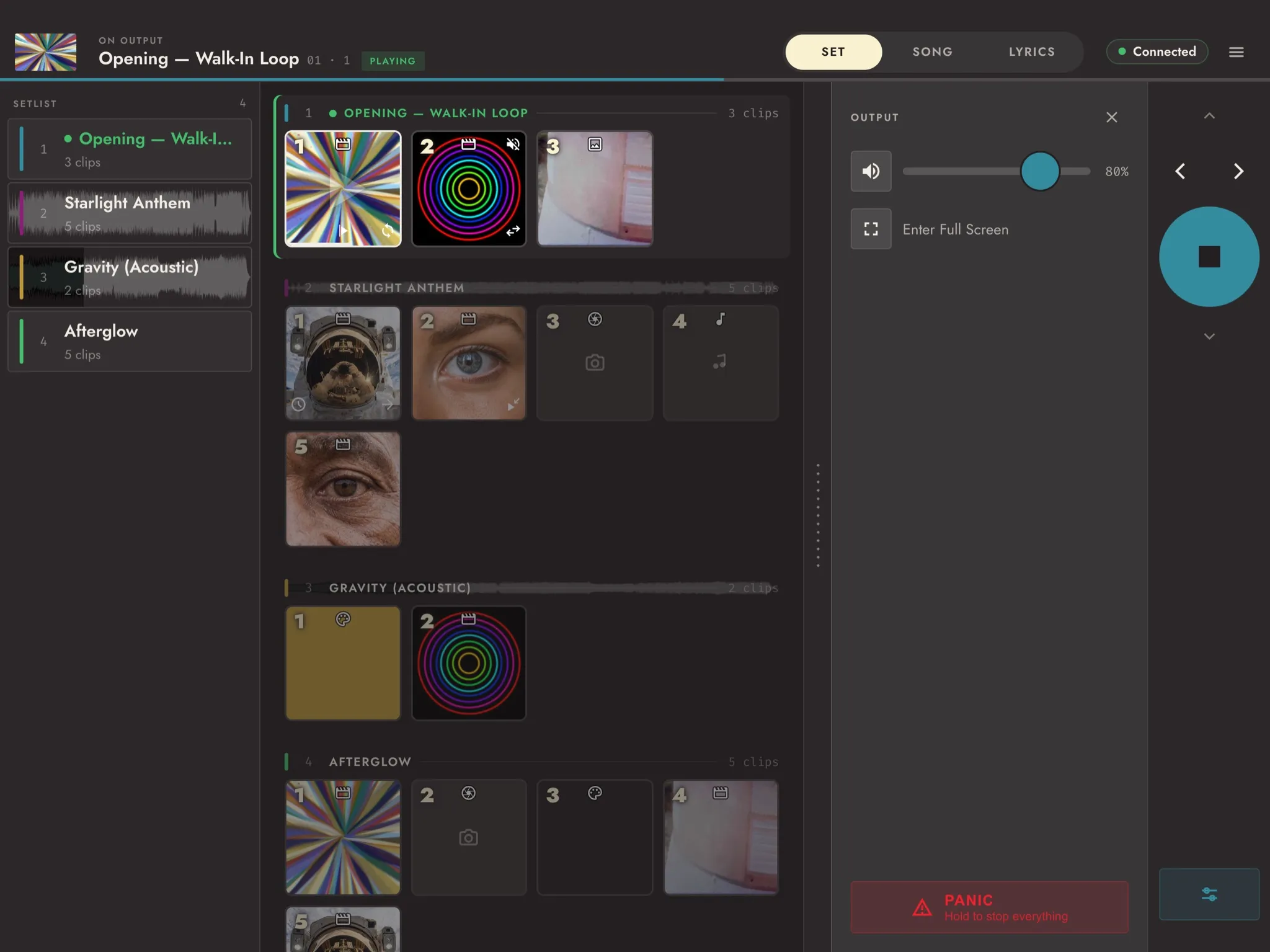
Open the Remote and your Project is there: every Song, with its Clips laid out as pads. A pad fires the instant your finger lands, like a drum pad, and the Clip plays on the computer. Hold a pad down and a Gate Clip plays for exactly as long as you hold it.
The transport steps to the next Song or Clip. Tucked behind it are the Output controls: volume and mute for Visibox’s audio, and full screen.
The phone doesn’t play any video itself. Visibox still does the heavy lifting on the computer, and the Remote is the hand on the controls.
For front of house
Most engineers already mix from a tablet, out in the room where they can hear the band. Put the Remote on that same tablet and the visuals are one swipe away from the mix. Start the next Song, fire the Clip for the drop, or pull the video’s audio back against the band, all without leaving the mix position.
That also means the visuals don’t need their own operator. If your engineer is already watching the stage for cues, the visuals can ride along.
For the person on stage
Clip a phone to the mic stand and switch the Remote to its Lyrics view. You get the lyrics and chords for the Song that’s playing, with the current line marked as it goes by. The visuals and backing tracks are behind you, the words are in front of you, and when the band’s ready for the next one, you start it. The set moves at your pace instead of the computer’s.
For a solo act this is the whole rig in a pocket.
For soundcheck
A Clip that looks great on your computer’s screen can turn to mush on a projector forty feet away. Take the Remote to the back of the room, or up to the balcony, and fire Clips while you watch from where the audience will be. Fix the one that doesn’t read before the doors open, not after.
Getting connected
Put the phone and the computer on the same network, open the Remote, and tap your computer in the list. In Visibox, choose Pair with Remote… and type the six-digit code it shows. That’s a one-time step: after that the Remote remembers the computer, reconnects on its own when you open it, and keeps trying if the venue Wi-Fi drops mid-set.
Want a feel for it before the computer’s set up? Tap Explore the demo on the first screen for a sample show you can tap through with no connection at all.
Get it
Visibox Remote is free on the App Store (iPhone and iPad) and Google Play (Android). It works with Visibox 6 and later on a Pro plan.
More in the manual: Visibox Remote, Remote Pairing, and Lyrics on Visibox Remote. Visibox comes with a free 14-day Pro trial.